Snowflake Usage Looker Dashboard: An Automated Guide

16 minutes to read
Get free consultation


As your organization scales, Snowflake can transform from a powerful data engine into a significant and unpredictable operational expense. When the bill arrives, you’re left scrambling through query histories to understand what drove costs up. This reactive approach to cost management is a common challenge. Instead of using Snowflake less, use it smarter.

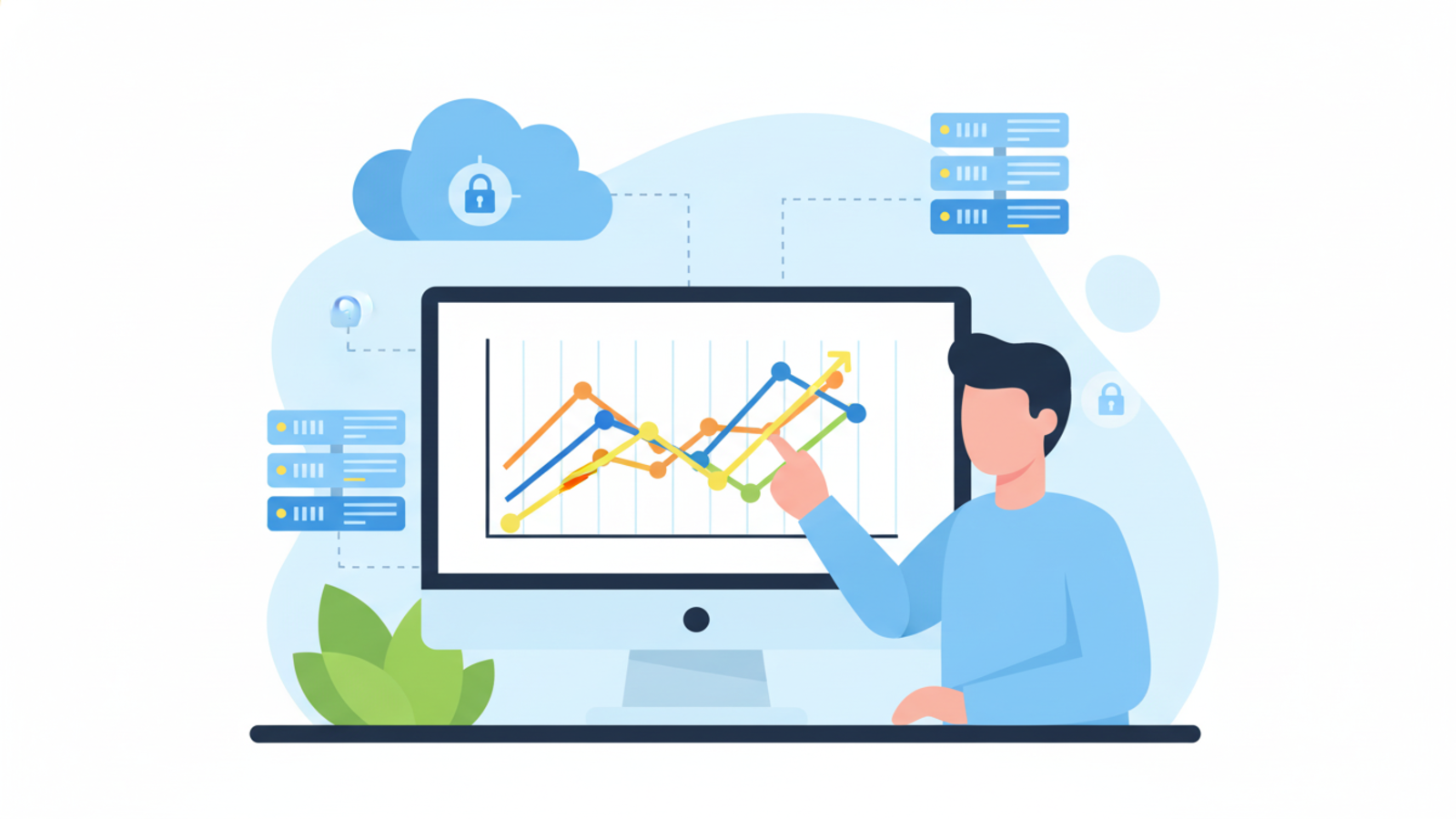
Imagine having a real-time, shareable view of your entire Snowflake environment: credit consumption, warehouse performance, and storage costs, all in one place. By connecting Snowflake’s rich usage data to a powerful BI tool like Looker, you can create automated dashboards that provide exactly this. This guide walks you through not just how to build these dashboards but how to establish a sustainable, automated monitoring system. We’ll cover secure connections, essential metrics, and the strategic choice between a DIY setup and a fully managed solution.


Why Automated Monitoring is Critical for Snowflake Governance

Manual reports create a bottleneck. A data analyst pulls usage statistics, formats them in a spreadsheet, and emails the report. By the time it reaches a decision-maker, the data is already hours or days old. This process is inefficient and fails to capture the dynamic nature of cloud data warehouse usage. Think of it as trying to navigate a highway by looking only in the rearview mirror.

Automated monitoring solves these problems and connects directly to business value:

Ultimately, automated monitoring transforms Snowflake governance from a painful, reactive chore into a strategic, proactive function that optimizes performance and protects your bottom line.

Connecting Looker to Snowflake Securely: The Foundation

Before visualizing any data, establish a secure and reliable connection between Looker and Snowflake. This foundation ensures your data is both accessible and protected.

Prerequisite: Understanding Snowflake’s ACCOUNT_USAGE Views

Snowflake provides a wealth of metadata and historical usage data through a special read-only database schema. The most impactful data lives within Snowflake’s ACCOUNT_USAGE views. These contain everything from credit consumption and query history to storage costs and user activity, typically with a latency of 45-90 minutes. You don’t need any special connectors or agents; just grant your Looker user the appropriate permissions to query this schema.

Step 1: Configure Secure Authentication (The Modern Way)

Username and password authentication was the standard for a long time. However, this method is less secure and is being deprecated for more robust, modern approaches. We recommend setting up key-pair authentication from day one for any programmatic access, including your BI tools.

Using key-pair authentication, generate a public/private key pair. Assign the public key to your Snowflake user, while Looker uses the private key to authenticate securely without sending a password over the network.

Here’s a high-level overview of the steps:

   # Generate an encrypted private key
    $ openssl genrsa 2048 | openssl pkcs8 -topk8 -v2 aes256 -out rsa_key.p8
    # Generate the public key from the private key
    $ openssl rsa -in rsa_key.p8 -pubout -out rsa_key.pub
   ALTER USER looker_user SET RSA_PUBLIC_KEY='MIIBIjANBgkq...';

This setup creates a more secure and manageable connection, laying the groundwork for a reliable data pipeline.

Step 2: Establishing the Looker Connection

After configuring your Snowflake user, connecting it in Looker is straightforward:

Once connected, you can begin modeling the ACCOUNT_USAGE data and building your dashboards.

Building Your Essential Snowflake Usage Dashboards in Looker

At Stellans, we’ve implemented this for dozens of clients, identifying three core dashboards that provide immediate value for cost and performance monitoring.

Key Dashboard 1: Credit & Cost Monitoring

This critical dashboard supports financial governance by answering: “Where is my money going?”

Key Dashboard 2: Warehouse Performance & Efficiency

This dashboard helps determine if your warehouses are correctly sized. An undersized warehouse leads to slow queries and frustrated users, while an oversized one wastes money.

Key Dashboard 3: Storage Cost Analysis

Compute costs usually dominate Snowflake bills, but storage is a slow-growing expense that can catch you by surprise. This dashboard gives visibility into your data footprint.

Automating for Insight: Scheduling and Alerts

Building dashboards is only half the battle. To make them truly effective, push insights to stakeholders and alert them when action is required. Looker excels at this.

You can use Looker’s scheduler to automatically deliver key dashboards or specific reports to stakeholders via email or Slack daily or weekly. For example, a weekly digest of credit usage can be sent to every department head, keeping costs top-of-mind.

More powerfully, create alerts that trigger proactive notifications. For example, set an alert to notify you when daily credit usage for a specific warehouse exceeds a threshold. This prevents budget overruns. Select a tile on your dashboard, define the condition (e.g., value is above 100), and specify the notification channel. This turns your dashboard from a passive report into an active monitoring system. Check creating user-defined alerts in Looker for detailed steps.

The Stellans Advantage: Managed Dashboards vs. DIY

The steps above provide a solid roadmap for a DIY approach. However, maintenance introduces hidden costs. The Looker Marketplace offers pre-built “Blocks” for Snowflake monitoring, and competitors like CloudZero or Chaos Genius offer broad cloud cost management platforms. While these seem like quick wins, they come with challenges.

Stellans offers a different approach. We provide a plug-and-play, fully managed solution that removes the maintenance burden. Our Snowflake Monitoring Dashboard Solutions are not just templates; they are a service. We handle setup, maintain LookML models, and ensure dashboards stay up-to-date with Snowflake features and best practices. This guarantees reliable, accurate dashboards with no technical overhead for your team.

Conclusion

Automating Snowflake usage monitoring with Looker is a critical step toward cost governance and performance efficiency. Establish a secure connection, build dashboards around key metrics like credit usage and warehouse performance, and set up automated alerts. You can transform your relationship with Snowflake from reactive to proactive.

While the DIY approach is feasible, it adds long-term maintenance work. A managed solution offers the best ROI by freeing your team to focus on insights instead of dashboard maintenance. Whichever path you choose, take action and bring real-time visibility into your Snowflake environment. Doing so turns data into a well-oiled machine that drives business value, which is central to our end-to-end data engineering services.

Ready to get real-time visibility into your Snowflake usage without the hassle? Contact Stellans to see a demo of our automated monitoring dashboards.

Frequently Asked Questions

How do I connect Looker to Snowflake usage data?
You connect Looker by creating a secure database connection using key-pair authentication or OAuth2. Then, model data from Snowflake’s ACCOUNT_USAGE views within Looker to build visualizations and dashboards.

How do you monitor Snowflake credit usage in Looker?
Build dashboards that visualize data from the WAREHOUSE_METERING_HISTORY view. Key metrics include credits consumed per warehouse over time, daily/monthly cost trends, and identifying credit-intensive queries.

Can Looker automate Snowflake cost alerts?
Yes, Looker can automate cost alerts. Configure alerts on dashboard tiles to trigger email or Slack notifications when a condition is met, such as daily credit usage exceeding budget thresholds.

Article By:

https://stellans.io/wp-content/uploads/2024/06/IMG_5527-2-1.png
Vitaly Lilich

Co-founder and CEO of Stellans

Related Posts

    Get a Free Data Audit

    * You can attach up to 3 files, each up to 3MB, in doc, docx, pdf, ppt, or pptx format.